Add a page

Add a page with the Create new page window, or ask the AI chat for one.

2 min read Updated 3 Nov 2026
On this page

Add a page to your website in one of two ways: fill in the Create new page window, or ask the AI chat. Either way, the AI writes the page and matches the style of your other pages.

Add a page with the Create new page window

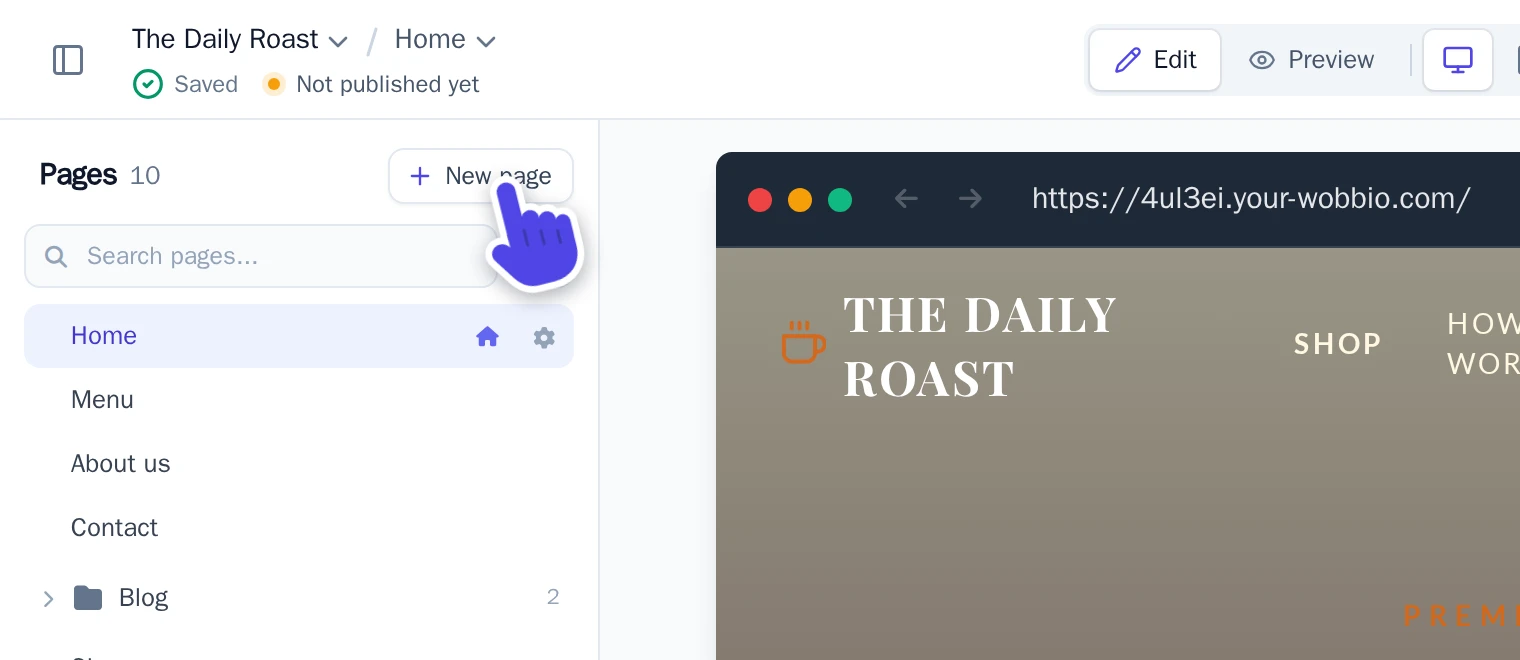
  1. In the Pages list, select New page.

    The editor with the New page button highlighted at the top of the Pages list
    The New page button is at the top of the Pages list.
  2. In the Create new page window, fill in:

    • Page name: the name of the new page, like “About us”.
    • Reference page: the page the AI uses as an example for the style, like your home page.
    • What should this page do?: what the page is for, who it is for and which sections you want.
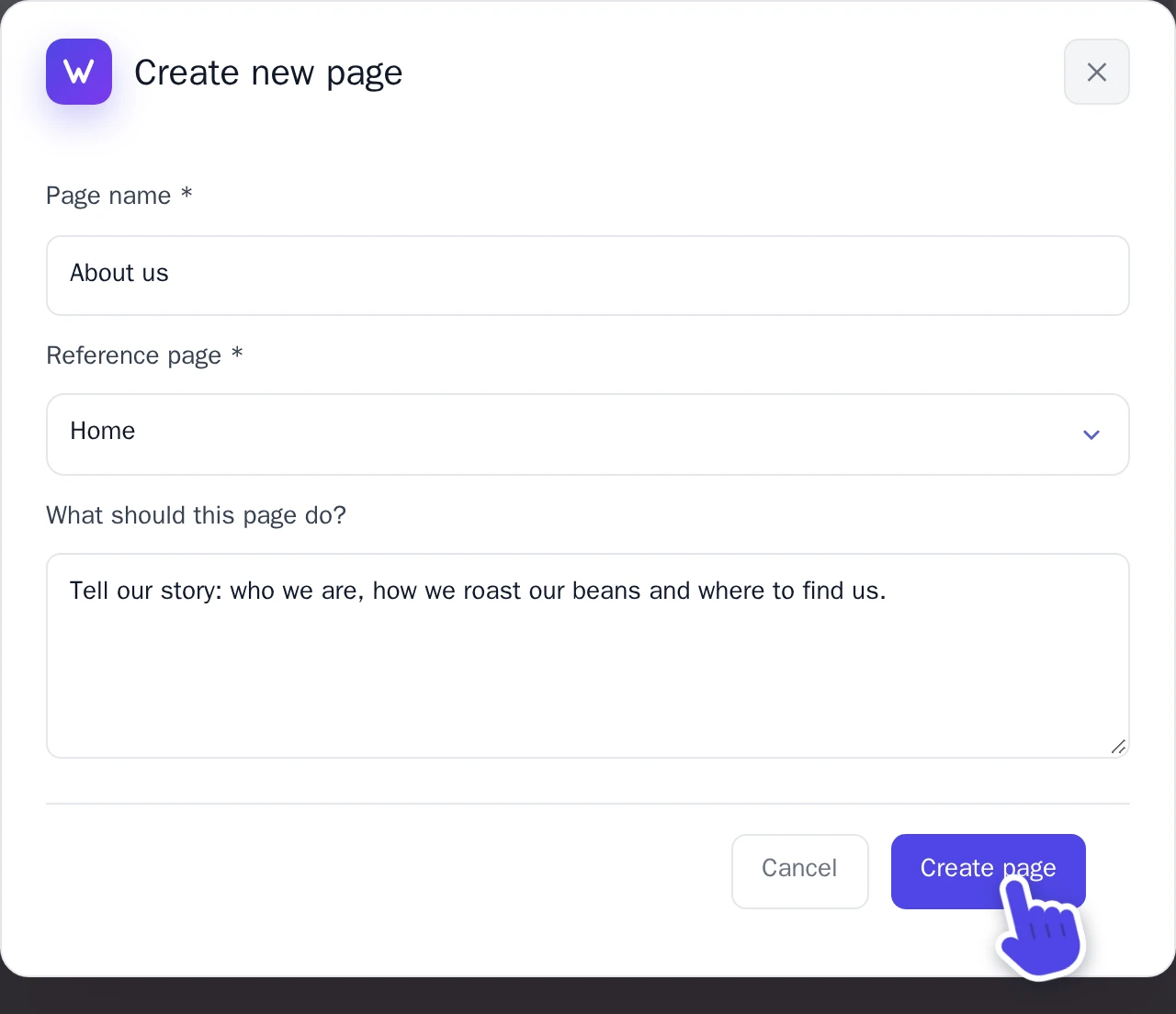
    The Create new page window, filled in for an About us page
    The Create new page window, filled in for an About us page.
  3. Select Create page.

    The AI starts writing the page. This usually takes about a minute. When it is done, the page is in the Pages list.

Add a page with the AI chat

Use the AI chat when you want to describe the page in your own words, or ask for more changes at the same time.

  1. At the top right of the editor, select AI chat.

    The top right of the editor with the AI chat button highlighted, next to Publish
    AI chat is next to Publish.
  2. Describe the page you want, for example: “Add an About us page with our story, how we roast our beans and a map to the café.”
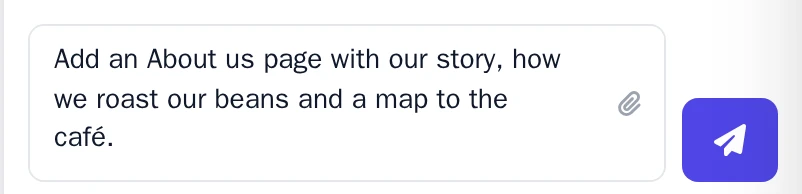
    The message box of the AI chat with a request for an About us page
    The message box at the bottom of the AI chat.
  3. Send the message. When the AI is done, the chat shows what it changed, with a link to open the new page.

To choose what the AI may work on, see AI chat settings.

After you add a page

The page is in your project right away. Visitors on your own domain see it after you publish, see Publish your website.

To change the page’s name or the address it has on your website, see Edit page details.

In other languages (18)

Tutorials

Learn how to use Wobbio

Adding a new page
2:52

Adding a new page

In this tutorial, we'll show you how to add a new page to your website.

Adding your own images to your website
5:05

Adding your own images to your website

Find out how to upload your own images and ask Wobbio AI to use them on your website.

How to use the Wobbio editor interface
6:33

How to use the Wobbio editor interface

Discover all the basics about the main tools in the Wobbio editor interface.

Migrating your outdated website into Wobbio
3:38

Migrating your outdated website into Wobbio

All information you need about migrating your old website to Wobbio.

How to generate images for your website
1:58

How to generate images for your website

Learn how to generate custom images with Wobbio AI and add them to your website.

How to customize AI chat settings
6:47

How to customize AI chat settings

Learn how to adjust your AI chat settings to achieve your desired results.

How to register or transfer a domain name
3:16

How to register or transfer a domain name

Learn how to register an available domain name or transfer a domain you already own to Wobbio.

How to publish your website to your domain name
1:59

How to publish your website to your domain name

Learn how to publish your Wobbio website to your own domain name, either by using Wobbio domains or by setting DNS records yourself.

Need help?

Connect with our team

Online
Chat on WhatsApp
Or connect via