Customizing your AI chat settings helps you plan changes before editing and keeps the assistant within the boundaries you choose. You can decide whether the AI should investigate first, what parts of your project it can touch, and how many iterations it can run before pausing. You can also choose which AI models the assistant should prefer.
Steps
-
Open the AI Assistant settings
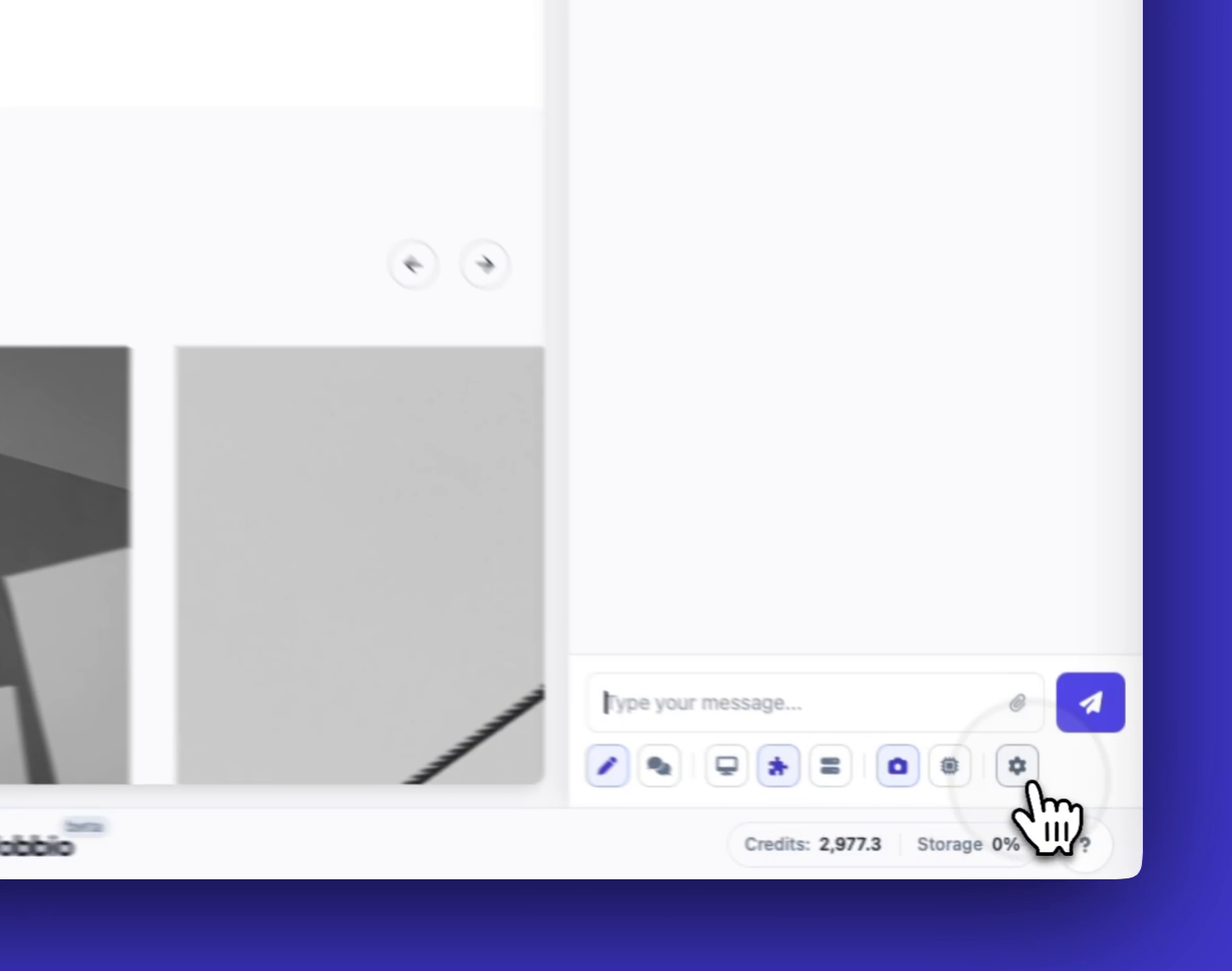
Click the settings option in the chat UI when you open a chat (from the chat sidebar or after selecting an element).
-
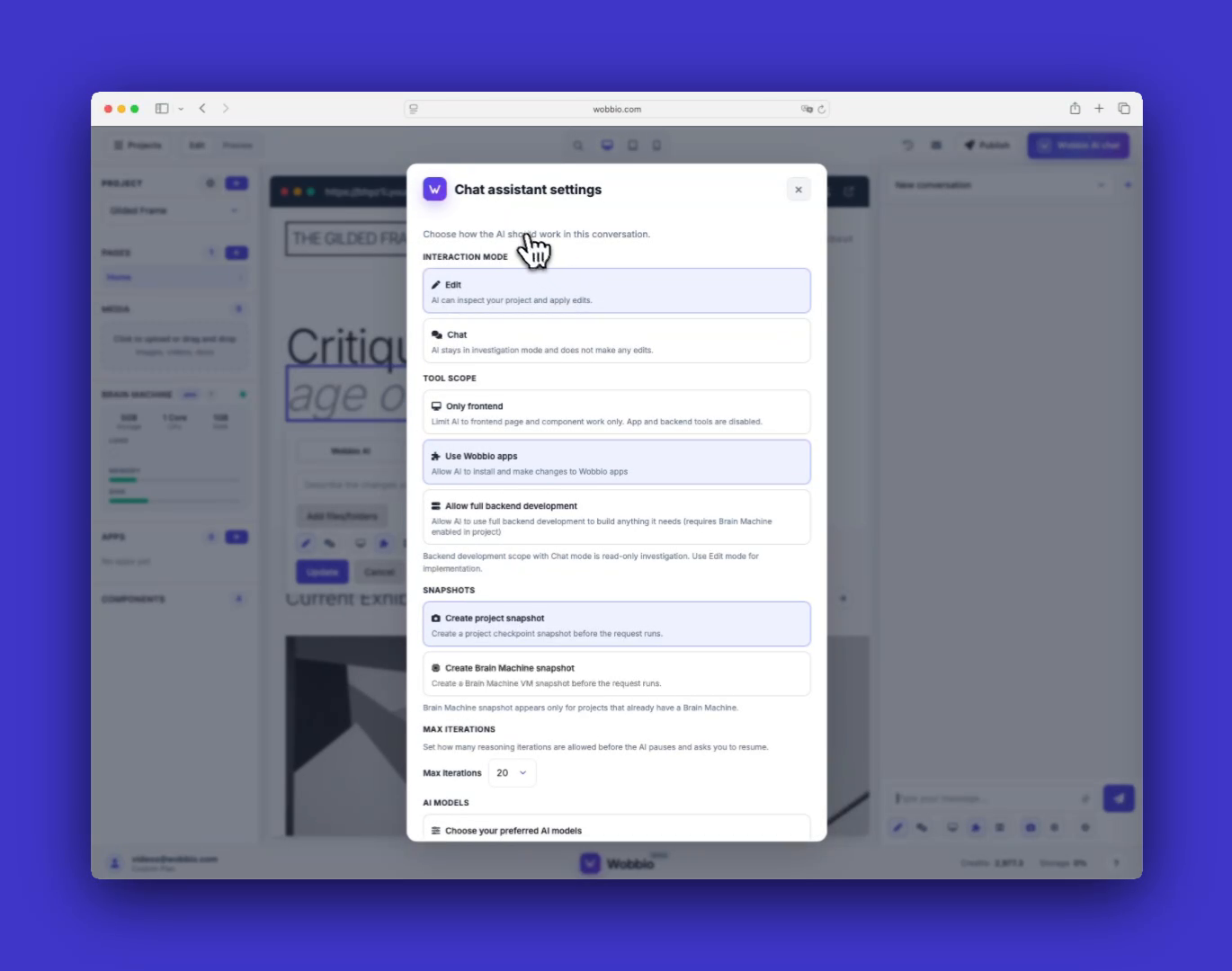
Review the Chat assistant settings panel
This panel is where you control how the AI behaves for the current project and conversation.
-
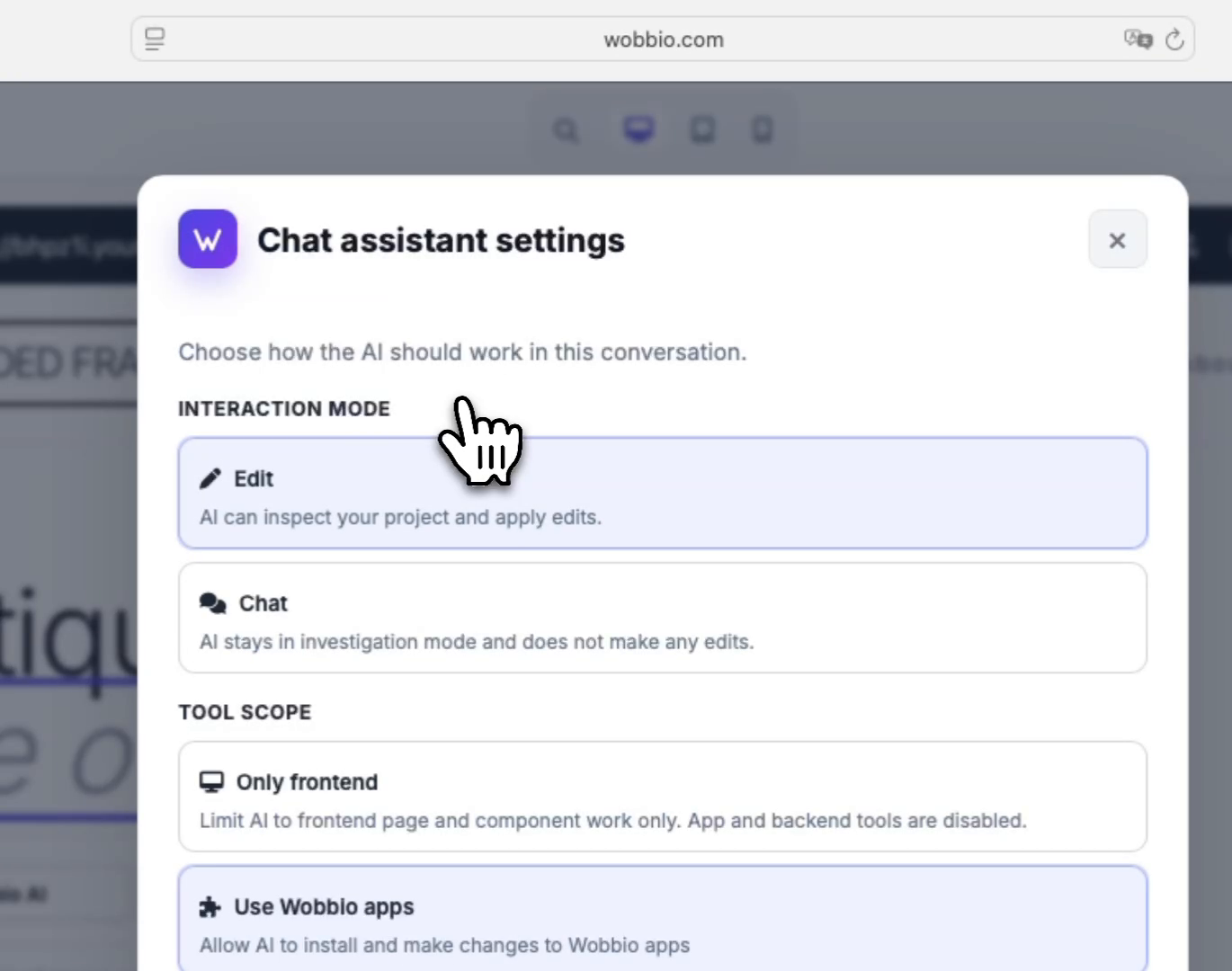
Choose an interaction mode (plan first, then edit)
Under Interaction mode, choose whether the AI should only investigate and propose a plan, or whether it can apply edits. A good workflow is to start in investigation mode, review the plan, then switch to edit mode to implement it.
-
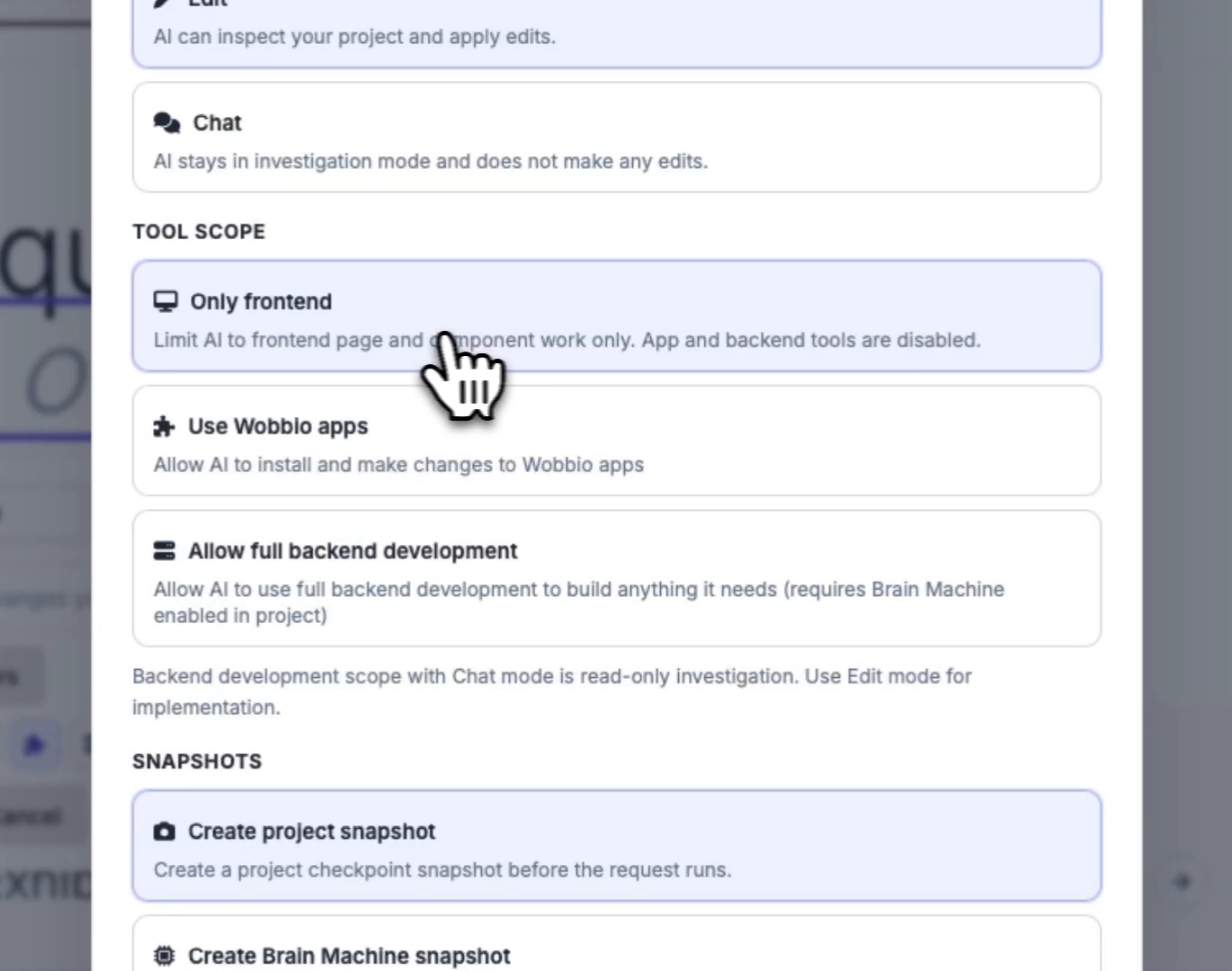
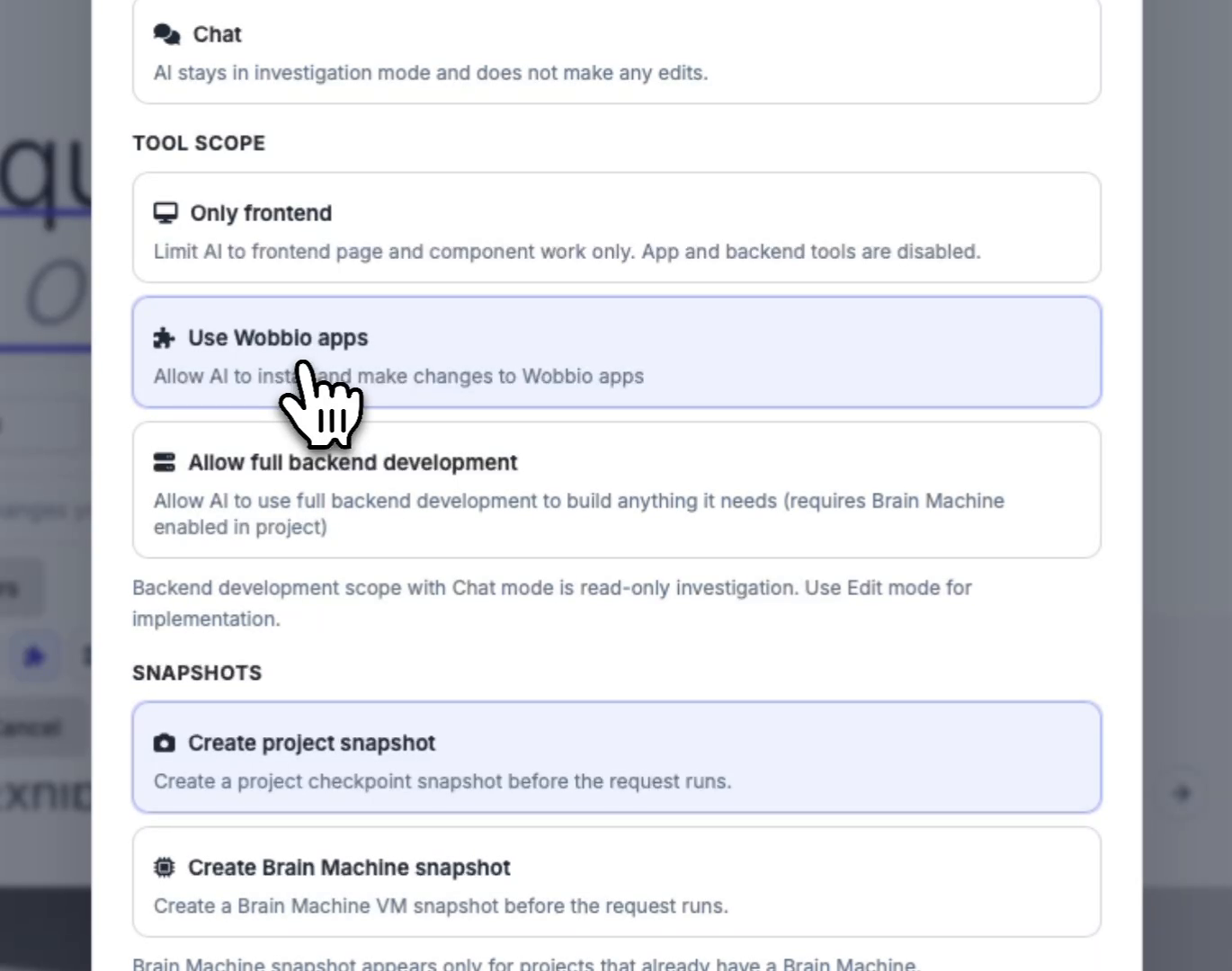
Limit what the AI is allowed to do with Tool scope
Under Tool scope, restrict the AI’s permissions. If you only want page and component changes, limit it to frontend work.
-
(Optional) Allow the AI to use Wobbio apps
Enable Use Wobbio apps if you want the AI to be able to install pre-built Wobbio apps and change their settings (for example, contact forms, newsletters, and e-commerce apps).
-
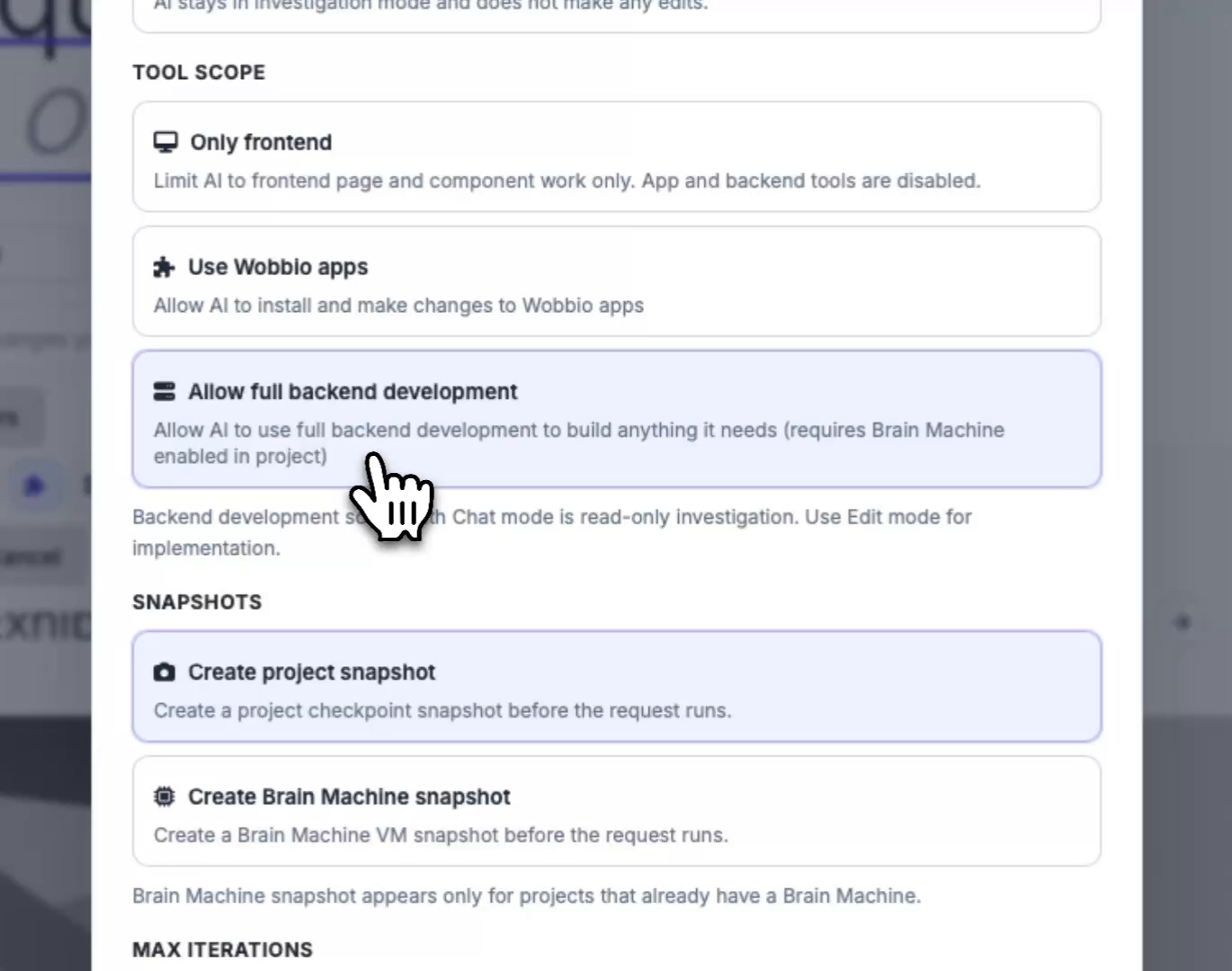
(Optional) Allow full backend development (Brain Machine required)
Enable Allow full backend development if your subscription includes a Brain Machine and you want the AI to build a custom backend tailored to your site (for example, a custom webstore or other custom functionality).
-
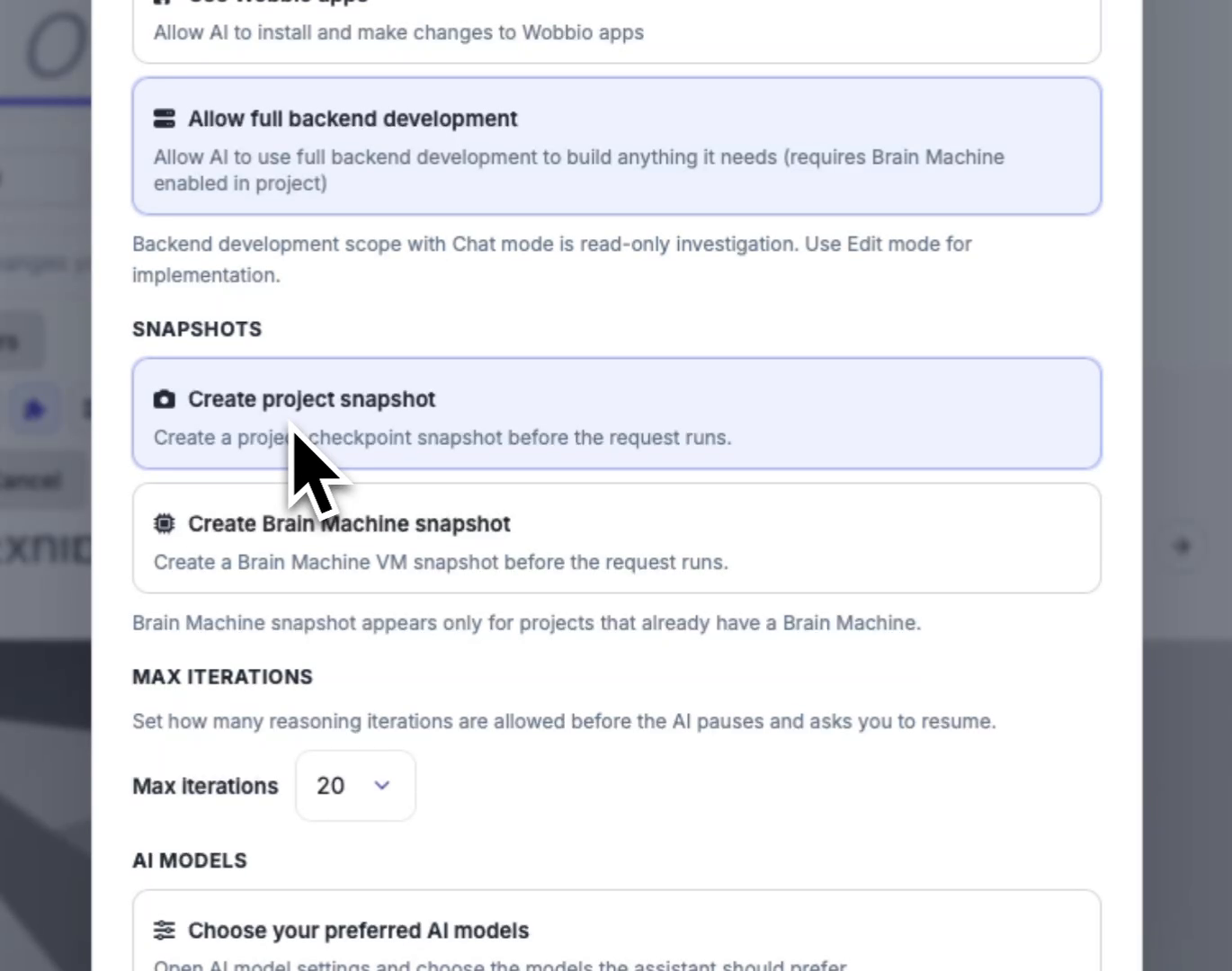
Configure snapshots for safer changes
Under Snapshots, choose whether to create a project snapshot before the AI runs. If your project already has a Brain Machine, you can also enable Brain Machine snapshots so you can restore if something regresses.
-
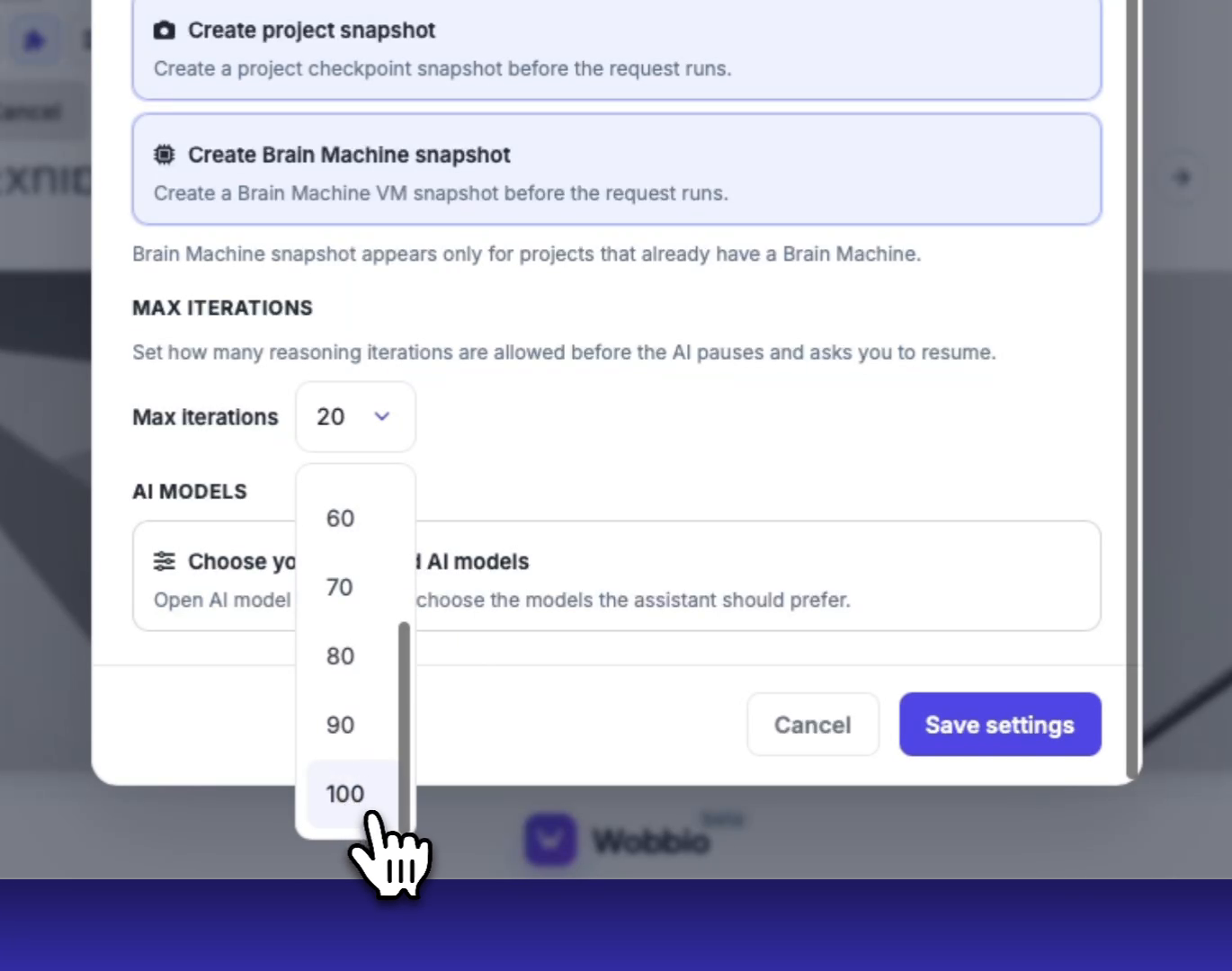
Set how long the AI can work before it pauses
Under Max iterations, choose how many iterations the AI can run before it stops and asks you to resume. Higher values can use more credits, but can be more hands-off.
-
Save your settings, then choose AI models (if needed)
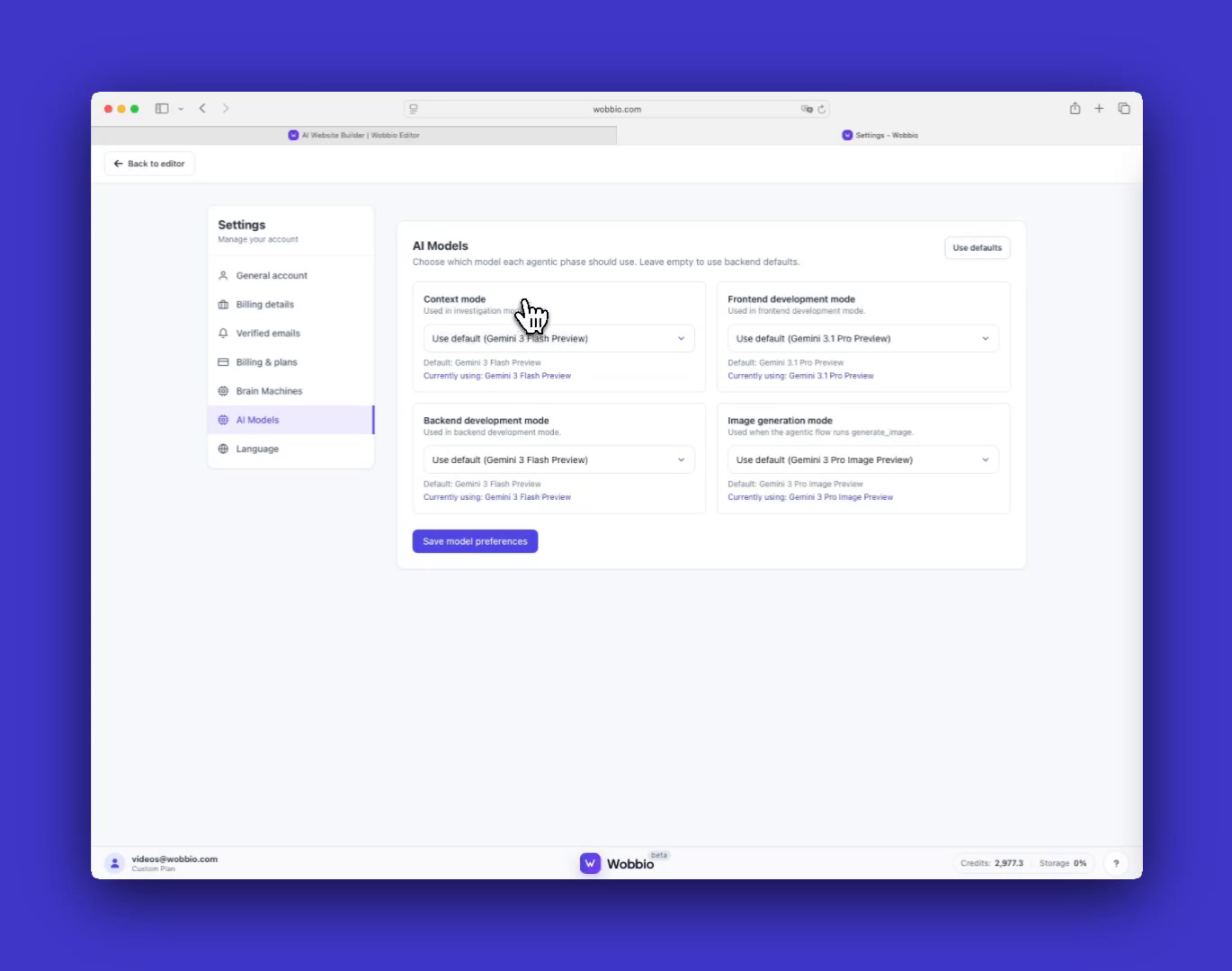
After changing project chat settings, click Save settings. To change models, open AI models and select your preferred models. Model choice affects credit usage, and more expensive models generally produce better results (especially for frontend visuals).
Note: AI model changes apply to all projects, while the chat settings above apply only to the current project.
Tips
- Start in investigation mode to get a plan, then switch to edit mode to implement it. This usually improves the quality of changes.
- Use snapshots (especially Brain Machine snapshots) before larger changes so you can quickly restore if needed.


