Want to swap the images on your site for your own? You can upload them, check the media overview, and let Wobbio AI place them for you. The good news? It only takes a few quick moves.
Steps
-
Drag and drop your files to upload them.
Short version? Drag, drop, done.
You can upload multiple files at once.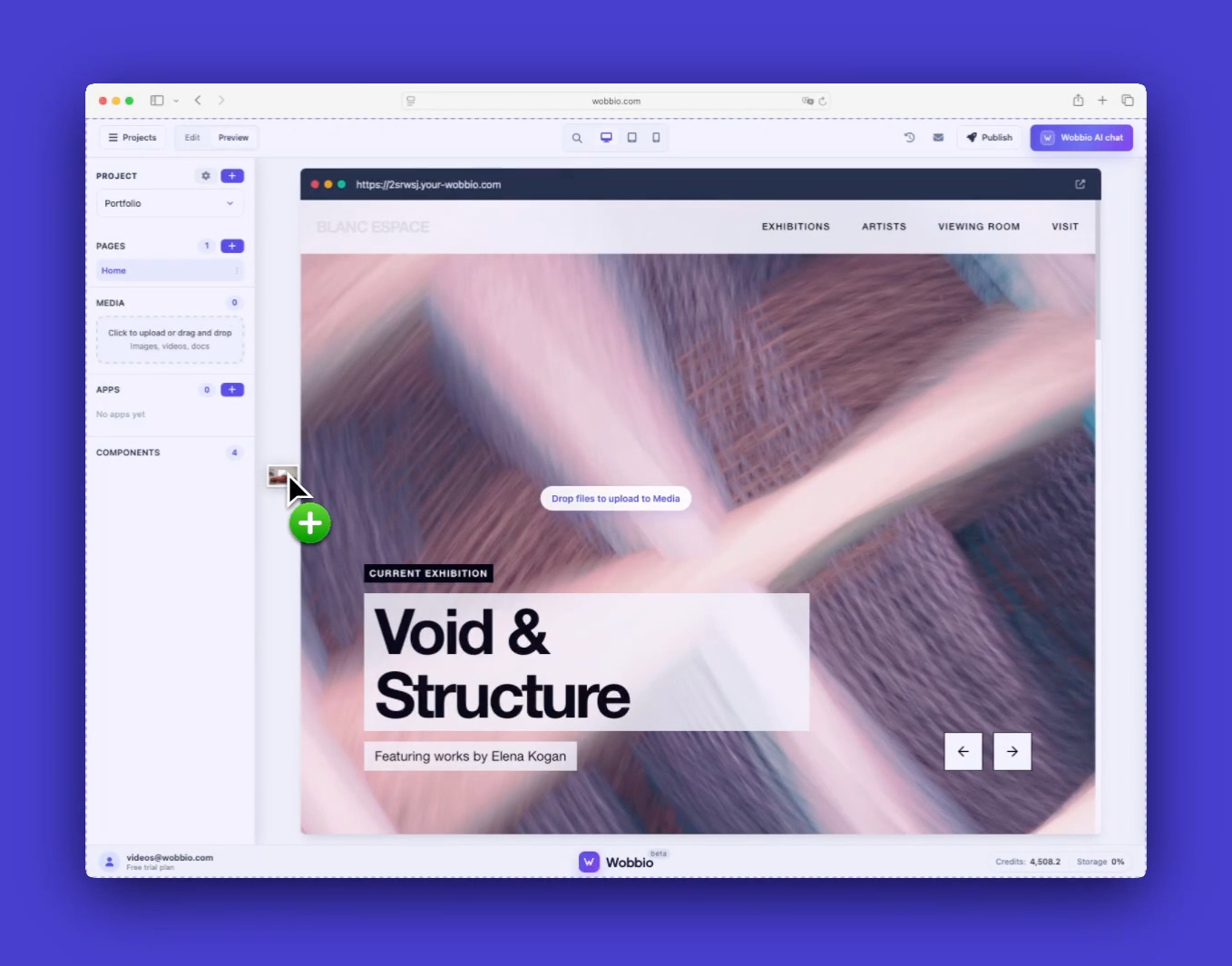
-
Open MEDIA to see your media overview.
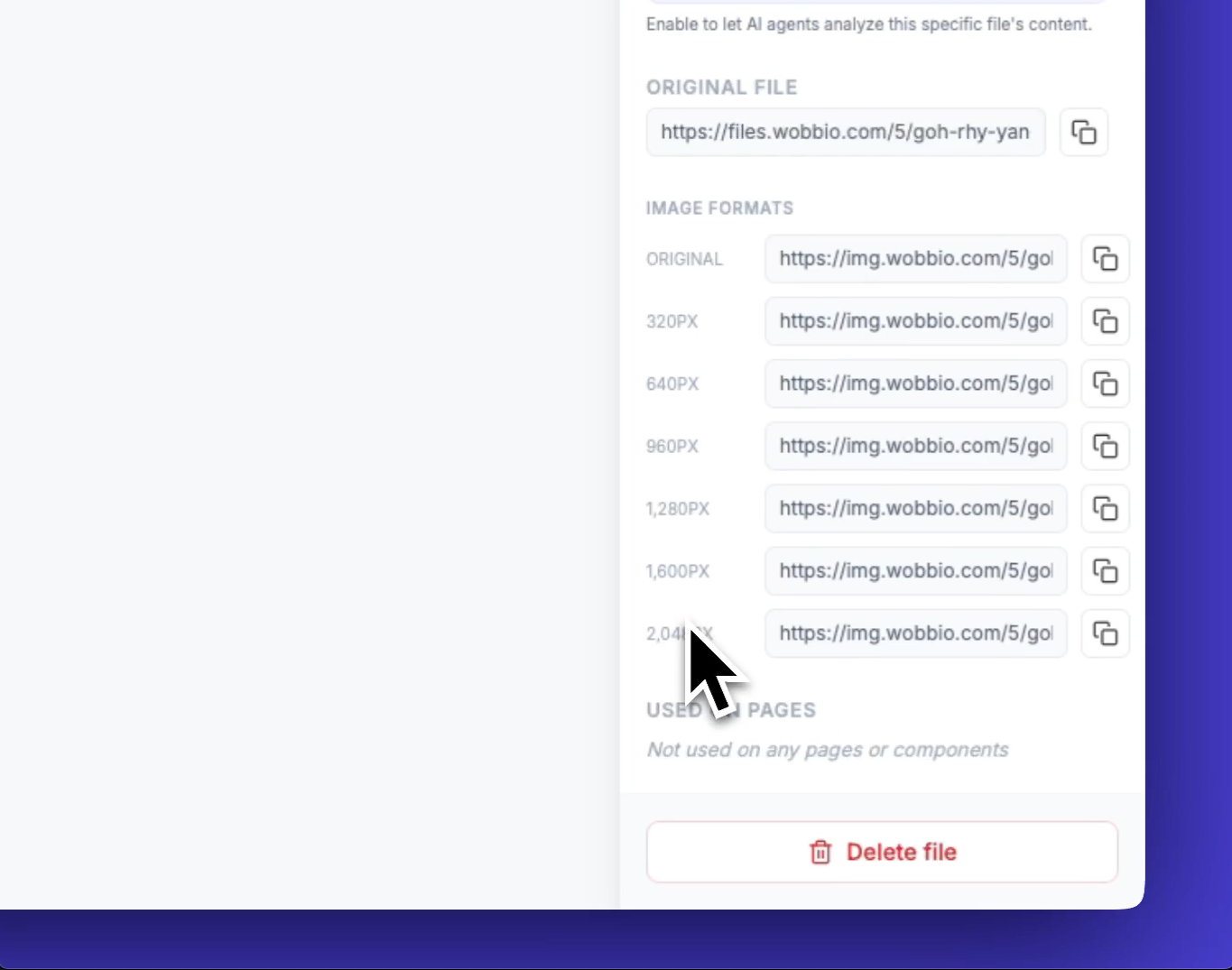
Confirm the files are there and notice the different sizes.
The AI uses the size it needs so your site stays fast.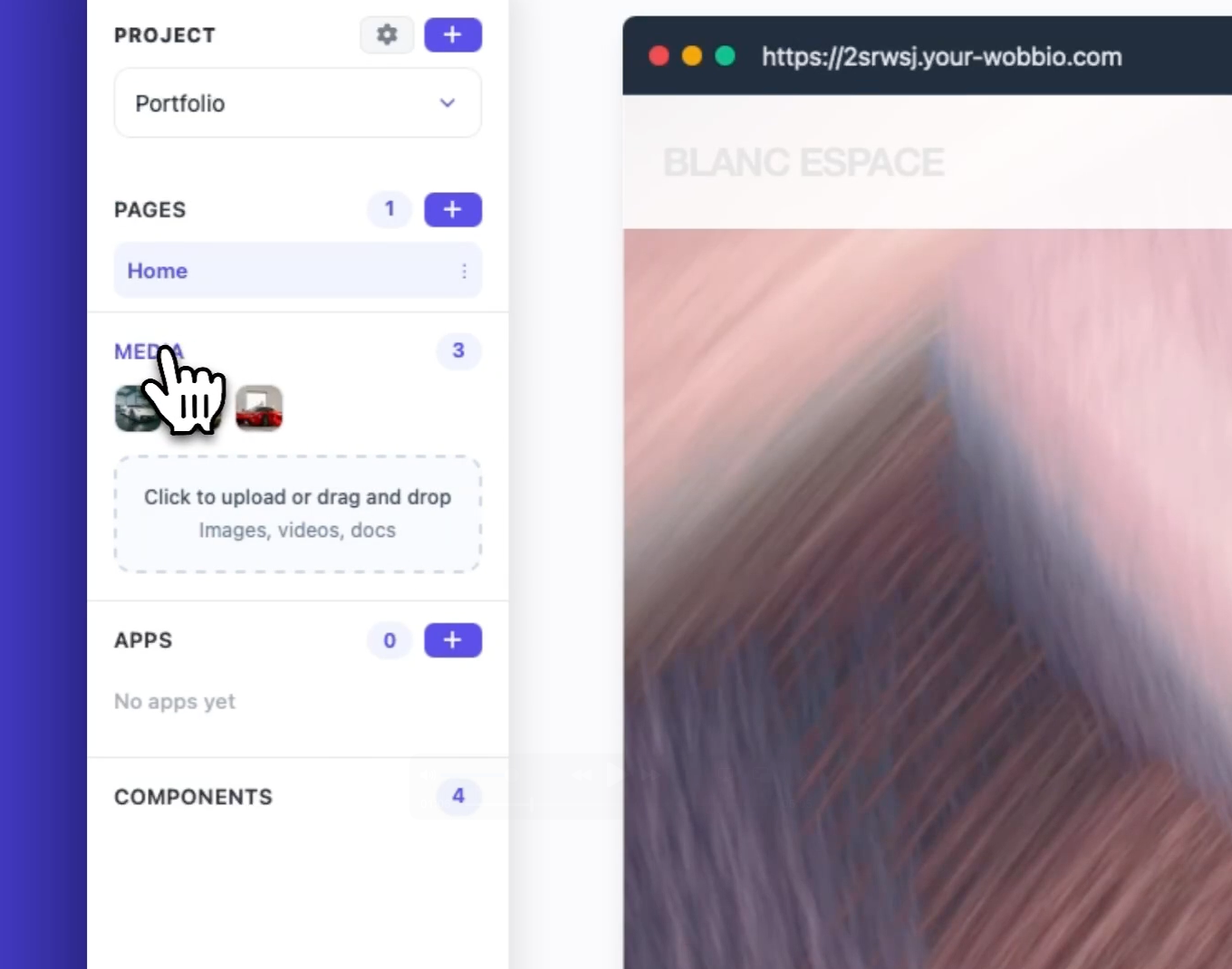
-
Use the AI visibility toggle on a file.
When it is off, the AI cannot see or use that image.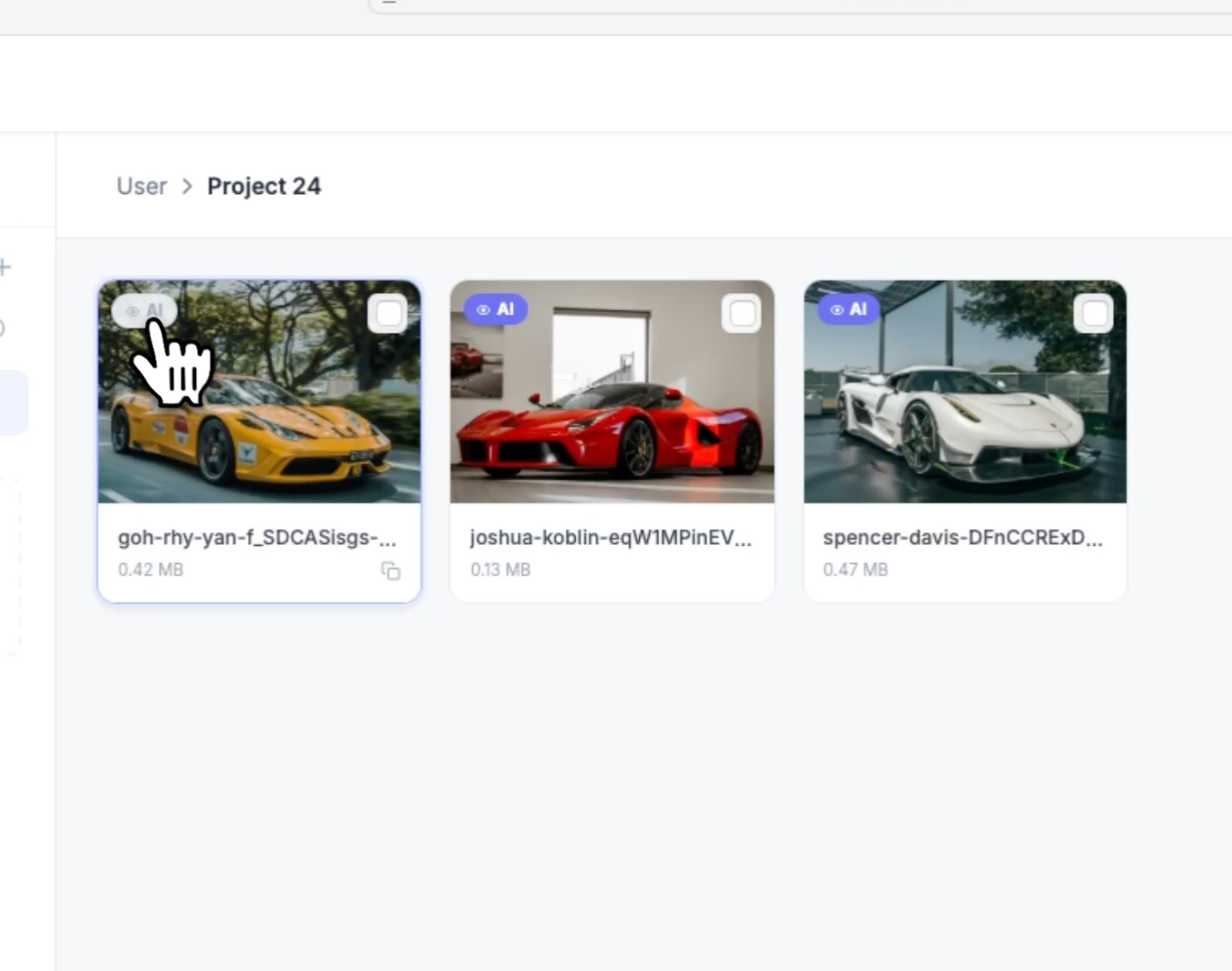
-
Keep files in the right folder.
The AI for a project can only access files in that project's folder.
If you want images shared across projects, place them in your User folder.
To share one folder with specific projects, use the edit icon to set access.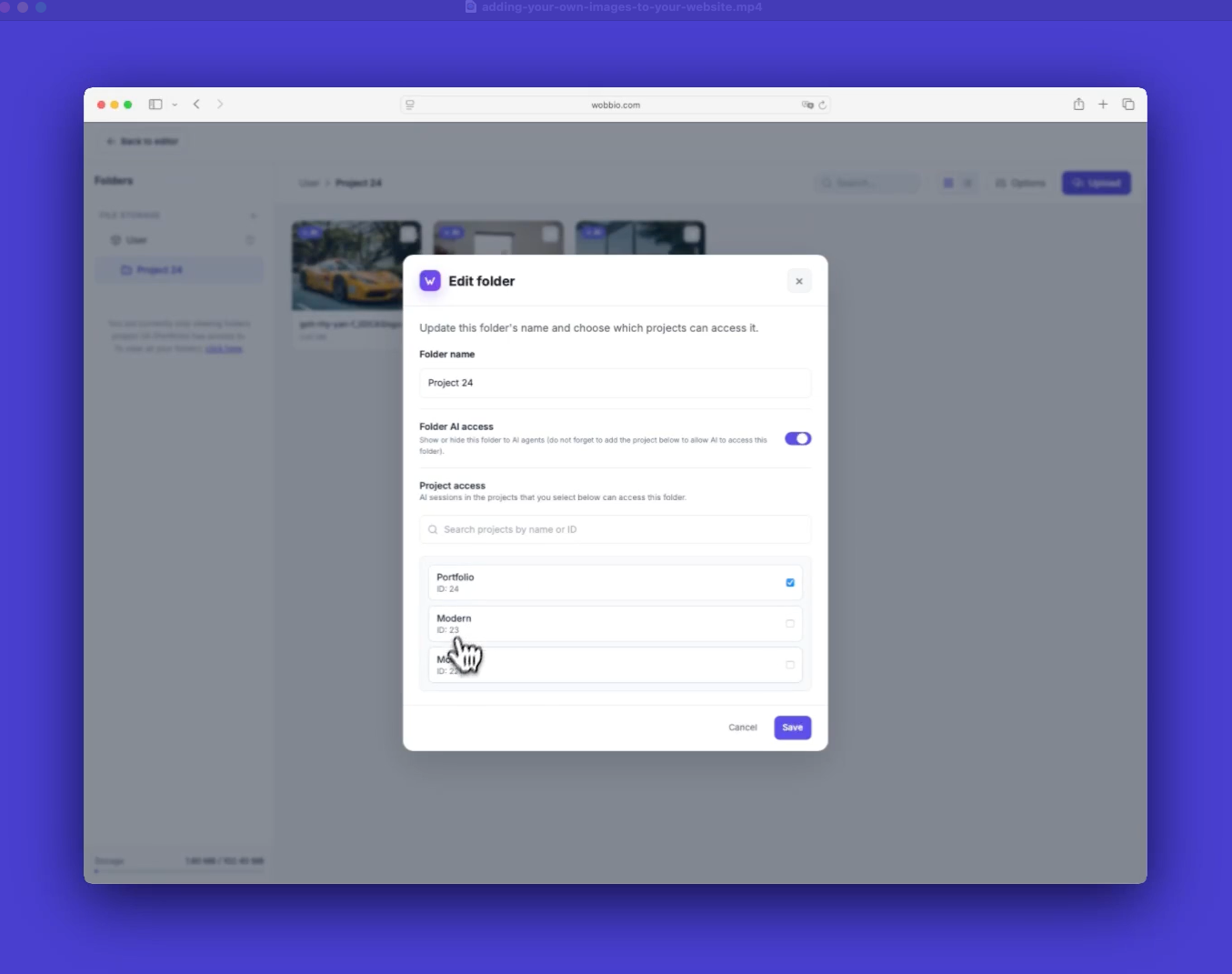
-
Open AI chat and describe what you want.
Or do it by clicking on an element and describe what needs to be changed.
Example: "Please replace all these images with my own images."
If you want extra clarity, select the folder or files too.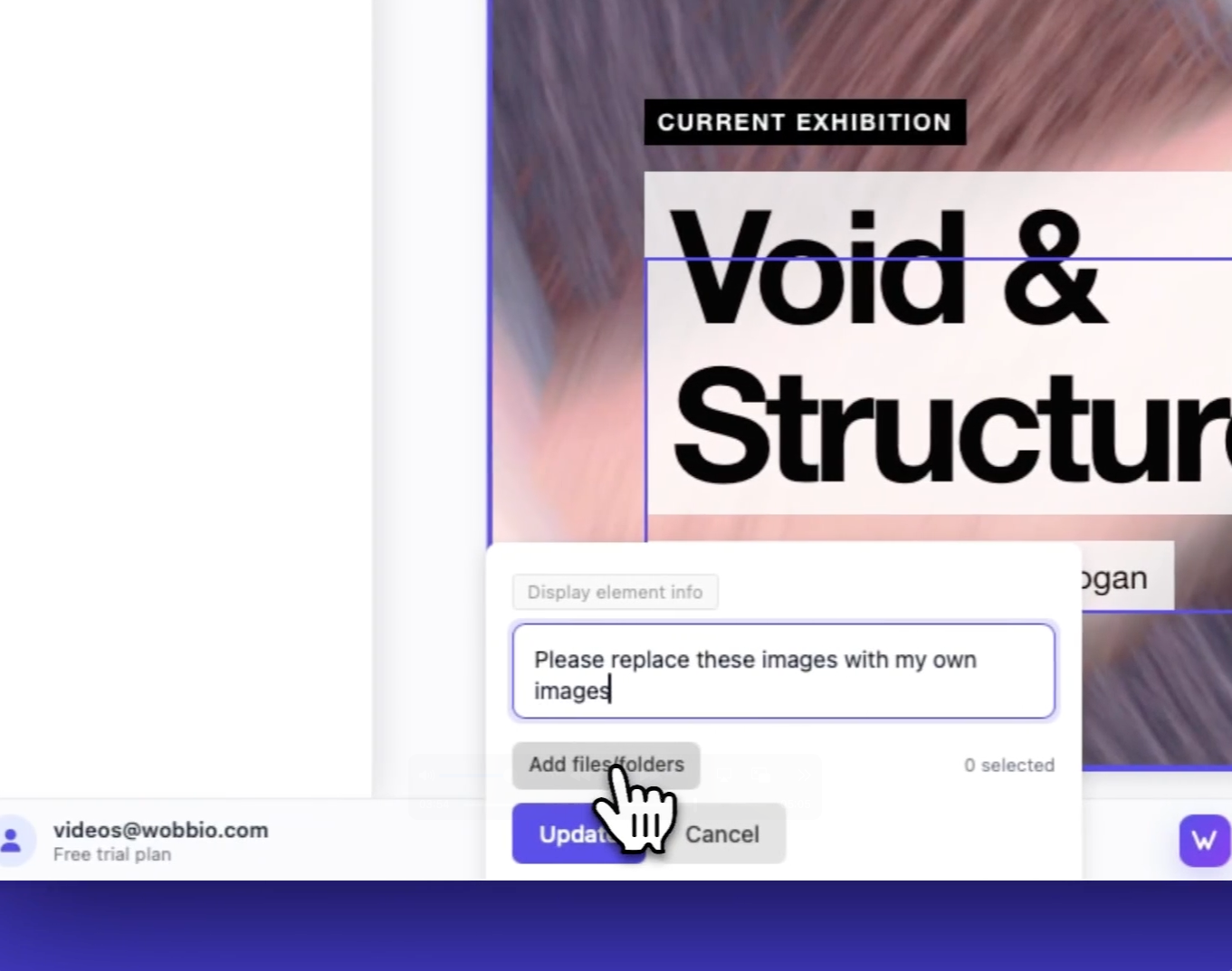
Tips
- Be clear about where files live. Project-specific images stay in the project folder; shared images go in your user-level folder.
- Add files to your prompt for clarity. It helps the AI grab the ones you want.


