Start a blog
Add a blog to your website, write posts, plan when they go live and show the newest posts on your home page.
On this page
With the Blog app you write posts and news on your website. You write them in the editor, choose when they go live, and Wobbio shows them on your blog page, each with its own page.
Add a blog
The easiest way is to ask the AI. It adds the app and makes the pages for it.
- Open the AI chat.
- Under the message box, set the scope to Frontend + Wobbio apps. Read more in AI chat settings.
- Ask for example: “Add a blog to my website: a blog page with the newest posts and a page for each post, and a link in the menu.”
The AI adds:
- a blog page with your posts, for example at
/blog; - a page that shows one post, at
/blog/followed by the name of the post; - a link to the blog in your menu.
It may also write a few first posts, so you can see how your blog looks. Change or delete them like any other post.
Write a post
- In the side menu, select Apps, then your blog. Its window opens on the Posts tab.
- Select New post.
- Type a title and your text. With the buttons above the text you make headings, lists, links or add an image.
- Under Summary, write one or two sentences for the blog page.
- Choose a Cover image: Choose takes one from your media library, Upload one from your computer.
- Under Publishing, choose Published.
- Select Save.
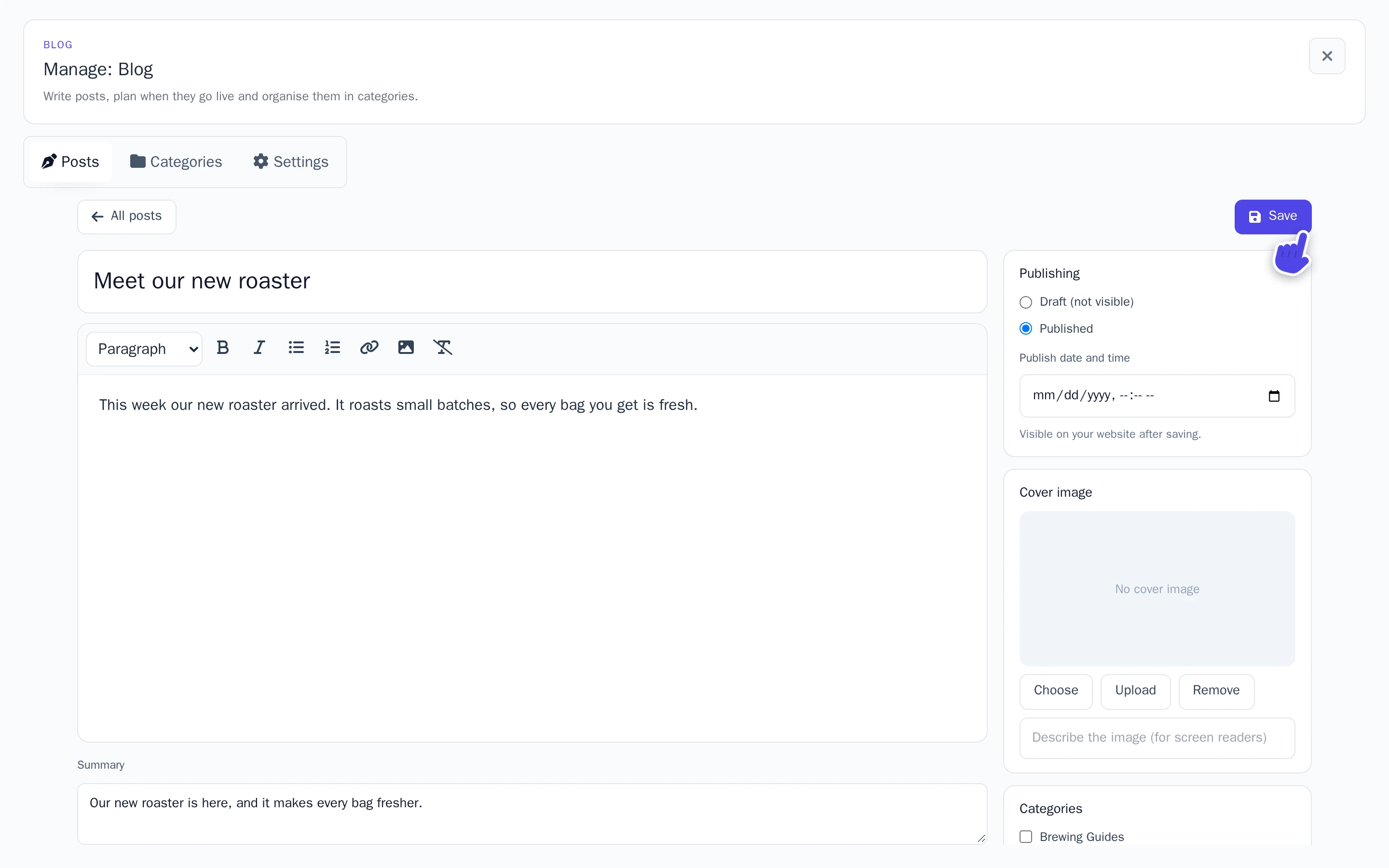
Your post is on your website right away. Not ready yet? Choose Draft (not visible) instead: Only you can see drafts.
Plan a post
Want a post to go live later? Choose Published and set the Publish date and time in the future. After saving, the post is Scheduled and goes live by itself at that time.
Categories, tags and search engines
- Categories: visitors can filter your blog on them. Make them on the Categories tab, or with New category while you write.
- Tags: words that fit the post, Separate with commas.
- Search engines: the Web address of the post, and how it shows in search results. The web address is made from the title. Leave the other two empty, and search engines get the title and the summary.
The newest posts on your home page
Ask the AI, with the scope Frontend + Wobbio apps: “Show the three newest blog posts on the home page, below the existing content.” New posts show up there by themselves.
Settings
On the Settings tab you change the name of your blog, how many posts show per page, whether the author is shown, and the RSS feed (for news readers). Your blog has an RSS feed, so readers can follow it in a news reader.


